
If your Mico Live Subscription Not Showing After Apple ID Purchase, the quickest way forward is to identify the billing channel before you do anything else. If the payment was made through the App Store, sign in with the same Apple ID and the same Mico Live account, then use restore purchase. If the payment actually happened through a web checkout, Apple cannot restore it, and the case needs to be verified with Mico Live using the web order proof. In most missing-access cases, the issue is not the payment itself but a mismatch between the billing account and the in-app account.
Start with the question that matters most: where did you actually pay?
Users often remember paying on iPhone and assume that means Apple handled the transaction. That is not always true. Mico Live access problems are much easier to solve once you know whether the order belongs to the App Store, Google Play, or a web checkout.
That distinction decides three things at once: what proof counts, whether restore purchase can work, and which support team can even see the order.
For Apple-billed purchases, the strongest proof is an Apple receipt or the order appearing in Apple purchase history. You can check recent Apple purchases at reportaproblem.apple.com, and you can view subscription status on iPhone through Settings > your name > Subscriptions and then selecting Mico. Mico Live’s Apple App ID is 908023218, which can help confirm you are looking at the right subscription.
For Google Play, the key evidence is the Google Play order number and the subscription status in the Play account. Google’s subscription page is play.google.com/store/account/subscriptions.
For web checkout, the important record is the web order ID or checkout confirmation. That kind of order is outside Apple billing, so an App Store restore will not pull it into the app.
A bank notification or card charge is useful context, but it is weaker evidence than the official store record. Support teams usually need the receipt, order number, or order ID because a bank charge alone does not prove that the transaction finished correctly or attached to the right account.
Why is my Mico Live subscription not showing after Apple ID purchase?
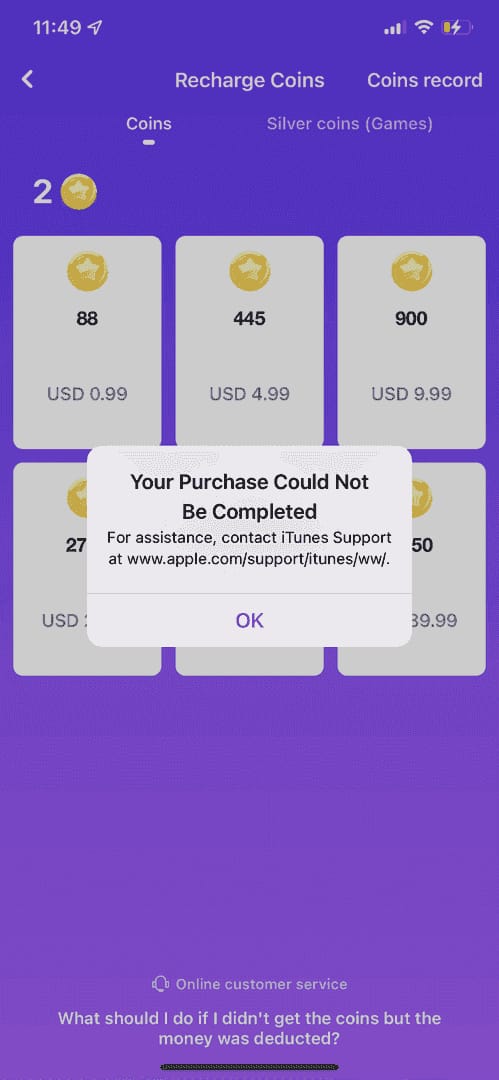
The most common explanation is simple: the purchase is valid, but the app is signed into the wrong account.
That can happen in two different ways. You may be using the wrong Apple ID on the device, or you may be signed into the wrong Mico Live account inside the app. Those are separate identities, and both have to line up. A subscription can be active in Apple while Mico Live still looks locked if the entitlement belongs to a different in-app login.
This is especially common after a reinstall, an app update, a phone change, or a switch in login method. On a new phone, iOS restore still requires the same Apple ID used for the original purchase. If the app signs you into a different Mico profile than before, the purchase may not appear where you expect it.
Other causes are less dramatic but still common:
the App Store transaction is still pending or under review
the app has not fully synced after reinstalling or restoring
the billing region or local currency display is different from what you expected
the payment was made on the web, but the user is trying to restore it through Apple
From reviewing digital entitlement cases, this is the pattern that repeats most: people treat the receipt as proof that the app must unlock automatically. In reality, the receipt only proves that a payment exists on a billing platform. It does not prove that Mico Live is currently signed into the correct user account.
How do you verify the subscription in the store account versus inside Mico Live?
Think of this as a two-layer check. First, confirm whether the subscription exists at the billing level. Then confirm whether Mico Live has attached that entitlement to the account you are using now.
If you paid through Apple, open Settings > your name > Subscriptions and look for Mico. You can also review recent purchases through Apple purchase history. If Apple shows the subscription as active, that tells you the billing side exists.
If you paid through Google Play, check the subscription under your Google account in the Play subscriptions area. If it appears there, Google recognizes the purchase.
Then open Mico Live and check the in-app subscription status at Profile > VIP Center > status. If the store says active but the VIP area still shows locked access, the problem is usually one of two things: wrong Mico account login or a sync issue after purchase, reinstall, or device change.
That split-state matters because it changes the next step. If the store account does not show the subscription at all, you are dealing with a billing problem. If the store account shows it as active but Mico Live does not unlock, you are dealing with an entitlement or account-linking problem.
If the purchase was through Apple ID, what should you do next?
Start with the Apple side, but do not stop there.
First, confirm the exact Apple ID used for the original purchase. If you use more than one Apple account, this is the first thing to rule out. Official guidance is clear that a missing subscription can happen if you are signed into the wrong Apple ID.
Next, make sure you are inside the intended Mico Live account. Check the account email, login method, or in-app identifier if available. This step matters more than many users expect. A valid Apple subscription cannot unlock a different Mico profile just because it is on the same phone.
Then try restore purchase inside Mico Live. The restore option is typically found in the store page, main menu, Settings, or account section. After restoring, refresh the app state: reopen the session, update the app if needed, and check the VIP Center again.
If you reinstalled the app or changed phones, this restore step becomes even more important. Store-linked subscriptions often need to be re-synced after reinstalling.
There is also an important limit here: if Apple shows the transaction as pending, the issue is not really a restore problem yet. Official Apple guidance indicates pending purchases cannot be canceled while processing; you generally need to wait for processing to finish, and if necessary request a refund afterward. If a purchase seems stuck, Apple also points users toward updating the payment method or redeeming a gift card in some cases.
So the practical reading is:
Apple active, Mico locked: likely Mico account mismatch or entitlement sync issue
Apple pending or missing: likely Apple billing issue first
Restore does nothing: verify both Apple ID and Mico account again before escalating
What if you paid on web checkout, not in the App Store?
This is where many users lose time. Restore purchase does not restore web orders through Apple.
Subscriptions are generally not transferable between Apple, Google Play, and web checkout channels. If the original payment was made on the web, Apple has no record of it and cannot restore it into Mico Live. The same logic applies in reverse: a web order ID is meaningful to Mico Live support, not to Apple support.
For a web checkout case, the right approach is to verify the order against the exact Mico Live account used during payment. If the payment succeeded but the app still shows a locked plan, log out and back in, then recheck the VIP area. If access still does not appear, contact Mico Live directly with the web order proof.
The support details in the available data point to contact@micous.com for missing coins or subscriptions, and the broader official site is micoworld.com for global support context.
The key evidence for a web case is:
the web order ID
the Mico Live UID or account details
the payment timestamp
screenshots showing the plan still locked in the app
Without that order ID, the case becomes much harder to trace.
Could local currency mismatch or pending status be the real reason?
Sometimes yes, but these signals are often misunderstood.
A different currency display between the App Store and a web checkout does not automatically mean duplicate billing or fraud. Pricing can vary by billing region, local storefront, and whether tax is included in the displayed amount. Community evidence also suggests that region or currency mismatch can delay sync in some cases, so it is worth checking whether your Apple ID country or Google Play country settings match your current billing region.
On Google Play, country preferences can be reviewed in account settings. On Apple, the practical concern is whether the Apple ID used for the purchase matches the storefront and account expected by the app.
Pending status should be treated differently from a normal missing-access complaint. If the store still shows the purchase as processing, you may not yet have a completed entitlement to restore. In that situation, the payment platform has to finish its review before Mico Live can reliably unlock benefits.
In other words, a pending purchase is usually a billing-state problem first, not an app-state problem.
Before opening a support ticket, prepare the proof that actually speeds things up
Support goes faster when you send the right evidence the first time. The most useful package is not a long explanation but a clean set of identifiers that lets the team trace the transaction.
For Mico Live support, prepare your:
Mico Live UID or account identifier
account email or login method
screenshot of the app showing the subscription or premium feature still locked
Apple receipt, Google Play order number, or web order ID
purchase timestamp
note about whether you reinstalled the app, changed phones, changed region, or switched login methods
For Apple support, the useful evidence is different. Official guidance points to screenshots of purchase history, the Apple ID involved, and the relevant timestamps. If Apple does not show the purchase correctly, or if it remains pending or failed, Apple is the right first contact.
For Google support, the equivalent proof is the Google account and the Play order record.
A simple rule helps here:
If the store shows the subscription as active but Mico Live is still locked, contact Mico Live support first.
If the store does not show the purchase correctly, contact Apple or Google first, depending on the billing channel.
For future renewals, prevention is mostly about consistency. Bind the correct Mico account before paying, keep the same login method after reinstalling, save receipts and order IDs, and avoid switching checkout channels unless you already know how that affects access. Apple, Google Play, and web checkout do not behave like one shared wallet, and assuming they do is one of the easiest ways to end up with a missing subscription that is actually sitting on a different account path.
If you need broader troubleshooting context, a related starting point would be the Mico Live payment and subscription help hub or the Mico Live premium and post-purchase access guide.
👉 Mico Live restore purchase iOS 👈
✅ Safe and convenient digital top-up service
✅ Orders are processed promptly after successful payment
✅ Supports popular products and recharge scenarios
✅ Customer support can help with order issues