
To restore a 4Fun Diamonds purchase after switching phones, start by matching two things exactly: your original 4Fun login and the same Apple ID or Google account that paid for the order. Then check whether the purchase appears in App Store or Google Play history before using Restore Purchases in the app. If the diamonds still do not show, confirm whether the order succeeded, is pending, refunded, or failed, and only then contact official 4Fun support with your receipt, order ID, account details, and screenshots. The phone change itself is usually not the real problem.
How do I restore my 4Fun Diamonds purchase after switching phones?
The practical answer is simple, but the details matter. Open 4Fun on the new device, sign in with the same 4Fun account, make sure the new phone is using the same Apple ID or Google account as the old one, and then tap Restore Purchases. On the same operating system, that is the normal recovery path.
What trips people up is assuming same phone number or same app installed means they are already in the same account setup. In purchase recovery cases, the fastest fix usually comes from matching three records together: the 4Fun account, the store account, and the receipt or order ID. If one of those is different, restore may return nothing even though the payment was real.
If you want a broader troubleshooting path, this issue usually overlaps with a general 4Fun account, billing, and diamonds support guide, because missing diamonds after a phone switch are often really account or billing mismatches.
Why are 4Fun Diamonds missing after changing phones?
Most cases fall into one of four buckets, and none of them are unusual.
The first is the wrong 4Fun account. 4Fun can be accessed through different login methods, and those methods are not always interchangeable in practice. An email login, phone login, social login, Apple ID login, or Google login may point to different account records. If the old phone used one method and the new phone uses another, your diamonds may appear gone when they are actually attached to a different account. Guest login is the riskiest version of this problem, because guest sessions are harder to recover after reinstalling or changing devices.
The second is the wrong store account. On iPhone, restore depends on the same Apple ID used for the original purchase. On Android, it depends on the same Google account used in Google Play. This is one of the most common causes of a 4Fun purchase not showing on a new phone: the app login is correct, but the store account on the device is not.
The third is a region mismatch. If the old phone used one App Store or Google Play region and the new phone uses another, restore can fail. This tends to happen after moving countries, changing billing profiles, or setting up a new device with a different store country. Receipt currency, tax wording, and billing-country settings can all hint that the purchase belongs to a different region than the one currently active.
The fourth is that the payment did not fully settle the way you think it did. A bank notification is not always the same as a completed in-app purchase. The order may still be pending, may have failed, or may have been refunded. If the store status is not clearly successful, restore inside 4Fun may have nothing valid to recover.
From reviewing digital purchase recovery cases, the most common cause is not the phone change itself but signing in with a different app account or store account on the new device.
iPhone and Android restore do not work the same way

The broad logic is the same on both platforms, but the checks happen in different places.
On iPhone, the official path is to verify the purchase through your Apple account first. Go to Settings > [your name] > Media & Purchases and review purchase history. If the original order is there, open 4Fun, log in to the same 4Fun account, and use Restore Purchases. Apple App Store restore requires the same Apple ID that made the purchase. If the phone was factory reset and restored from iCloud backup, in-app purchase eligibility is generally preserved on that same Apple ID.
On Android, start in Google Play > Payments & subscriptions > Budget & history to confirm the order exists under the correct Google account. Then open 4Fun, sign in to the same 4Fun account, and tap Restore Purchases. If restore still fails, the standard retry path is to force stop the app, clear cache, restart the device, and try again. There is also an Android edge case after a reset where Google Play restore may fail until you clear Play Games cache and sign in again.
One important limitation sits behind both systems: consumable in-app purchases such as diamonds are not always restorable in the same way as non-consumables or subscriptions. That is why some users find that premium access comes back while one-time diamonds do not. If your issue is specifically a one-time currency purchase, the store history may prove the payment happened, but support may still need to verify how the entitlement should be handled.
If your case looks more like a successful charge with no delivery than a pure restore issue, the related problem is closer to 4Fun payment successful but diamonds not added.
Do you need the same Apple ID or Google account to restore a 4Fun purchase?

Yes. In same-platform recovery, this is usually non-negotiable.
A lot of users focus only on the 4Fun login and forget that app-store billing is tied to the store account that paid. If you bought diamonds on one Apple ID and your new iPhone is signed into another, the app may not see any eligible purchase to restore. The same applies on Android with Google Play.
This is also where region and billing country become more than a technical detail. If the new phone is using a different store region from the old one, the purchase history may not line up properly with the current app environment. Community evidence suggests that matching the old phone’s Apple ID or Google account and region gives restore the best chance of working. There is also a version-specific report that changing the store country back to the original purchase region can help, though that should be treated as a clue rather than a guaranteed fix.
For users in English-speaking markets, the receipt itself can help you diagnose this. Currency, tax wording, and billing-country details often reveal whether the purchase belongs to a different regional setup than the one now active. If you recently moved countries or rebuilt your billing profile, compare the old and new store settings before assuming the order disappeared.
If region mismatch seems likely, it helps to review the issue as a billing problem rather than only a restore problem. That is the same logic behind a 4Fun app region mismatch and billing country issues check.
Can 4Fun Diamonds be restored from iPhone to Android, or Android to iPhone?
Usually not automatically.
This is the edge case that causes the most disappointment because users understandably think their purchases should follow their account to any device. But platform billing often does not work that way for consumable credits. Official guidance in comparable app ecosystems points in the same direction: purchases made on one operating system are often tied to that platform’s billing system and do not transfer automatically to the other.
For 4Fun, the available evidence points to the same conclusion. If you moved from iPhone to Android or Android to iPhone, diamonds may not carry over automatically. That does not always mean support cannot help, but it does mean you should not expect the normal Restore Purchases button to solve it.
There is also an important distinction between product types. One-time diamonds are usually treated differently from premium or subscription-style benefits. Premium access may restore separately, while consumable diamonds may not. A single-source report also suggests that UID-based top-ups can behave differently because delivery is tied to the 4Fun account rather than the device, but that is not the same as standard app-store purchase restoration.
So the right question is not only Did I switch phones? but also Did I stay on the same platform, and what exactly did I buy? That framing saves time and sets realistic expectations.
What should you collect before contacting support?
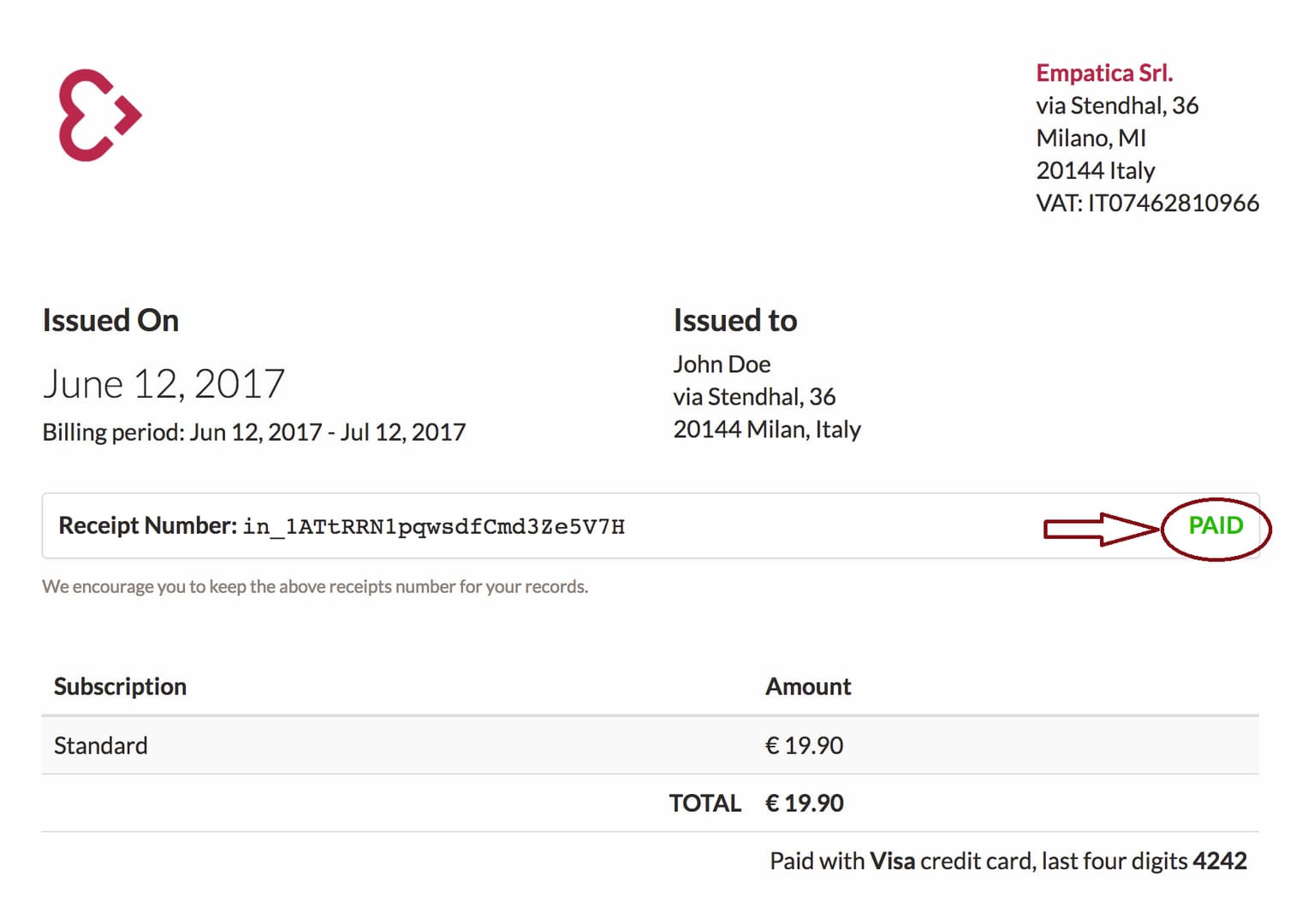
If restore does not work, support can only trace what you can identify clearly. The best ticket is not the longest one; it is the one that removes ambiguity.
Before you contact official support, gather the minimum evidence set:
your 4Fun account identifier, such as email, phone number, or linked login method
the Apple App Store or Google Play order ID
a receipt screenshot or purchase email
the date you changed phones or reinstalled the app
old and new device details
screenshots showing the missing diamonds, failed restore, or current balance
This is where many cases slow down. Users often send only a bank screenshot, or they crop the receipt so tightly that the transaction details are missing. That creates back-and-forth that could have been avoided. A complete store receipt or order ID is much stronger than a generic payment alert.
It also helps to describe the issue in one clean paragraph: you switched devices, you logged into a specific 4Fun account, you confirmed the store account used for payment, you tried restore, and the diamonds still did not appear. Include whether the order status in the store shows successful, pending, refunded, or failed. That one detail tells support whether they are looking at a delivery problem, a billing problem, or a mismatch problem.
If you need help locating the transaction details first, the related path is essentially the same as a How to find 4Fun receipt and order ID check. And if restore has already failed, your next stop is effectively 4Fun support contact for missing purchases.
When should you wait, and when should you escalate?
Waiting is reasonable only in a narrow set of cases. If the order shows as successful, you are still on the same platform, you are certain the 4Fun account and store account match, and you have already used Restore Purchases, then a short sync delay may be the explanation. Community guidance suggests allowing roughly 24 to 48 hours for sync after restore or reinstall before escalating.
Outside that scenario, passive waiting usually wastes time. If the order is pending, refunded, or failed, the issue is not a sync delay. If the store account is different, restore will not fix itself. If you changed from iPhone to Android or Android to iPhone, automatic transfer may never happen.
The safest escalation path is straightforward: open an official app support ticket and include the order ID, receipt, account details, old and new device information, and screenshots of what you already tried. That gives support enough to trace the order without asking you to restart the case from scratch.
One warning matters more than any other: do not buy the diamonds again until the original order status is confirmed. When users repurchase too early, support cases become messier because agents must separate the missing original entitlement from the new successful order. If the first order is still pending or already successful but undelivered, a second purchase can create duplicate-order confusion that is harder to unwind.
Before you buy again
If you need diamonds urgently, the temptation is to treat the missing order as lost and just pay again. That is usually the wrong move.
A safer rule is this: if the original order is clearly marked failed or refunded, a new purchase may be reasonable. If it is pending, wait. If it is successful but the diamonds are not showing, do not repurchase until you have tried restore on the correct account setup and, if needed, sent a support ticket with proof.
That approach protects you from paying twice for one problem.
If you need a careful, account-first 4Fun purchase guide, VGTopup can help you verify the right product flow before you pay again.