
The Honkai: Star Rail "Please Use the Device You Registered" error usually means your purchase is restricted to the original device, store account, or platform tied to earlier in-app payments. The fastest fix is to retry on the same device and the same App Store, Google Play, PSN, or other purchase channel first.
If that device is gone, use the official Top-Up Center at https://hsr.hoyoverse.com/payment with the same HoYoverse account, then contact official support if needed. Don’t keep retrying payments. A successful bank charge does not always mean the order cleared verification.
If you need a quick reference while comparing recharge paths, this summary of the Honkai: Star Rail top up device registered error is useful because it separates device issues from store-account issues.
Why does Honkai: Star Rail say "Please Use the Device You Registered" when I top up?
It usually means the payment is being checked against the original purchase environment, not just your game login. Users commonly report this after changing phones, reinstalling the app, switching from mobile to PC, or signing into a different Apple ID or Google account.
Here’s the part many guides miss: this is a three-layer problem.
According to official and community information, HoYoverse doesn’t clearly document a direct device lock rule by itself. But the restriction is widely observed and is commonly tied to Apple, Google, Sony, and other store policies. So yes, the message feels like a game error, but the root cause is often the payment channel.
From reviewing failed recharge cases, I would check the store account mismatch first. People often focus on the UID and forget that the App Store or Google Play account changed.
Why does this error happen after I change phones, stores, or platforms?
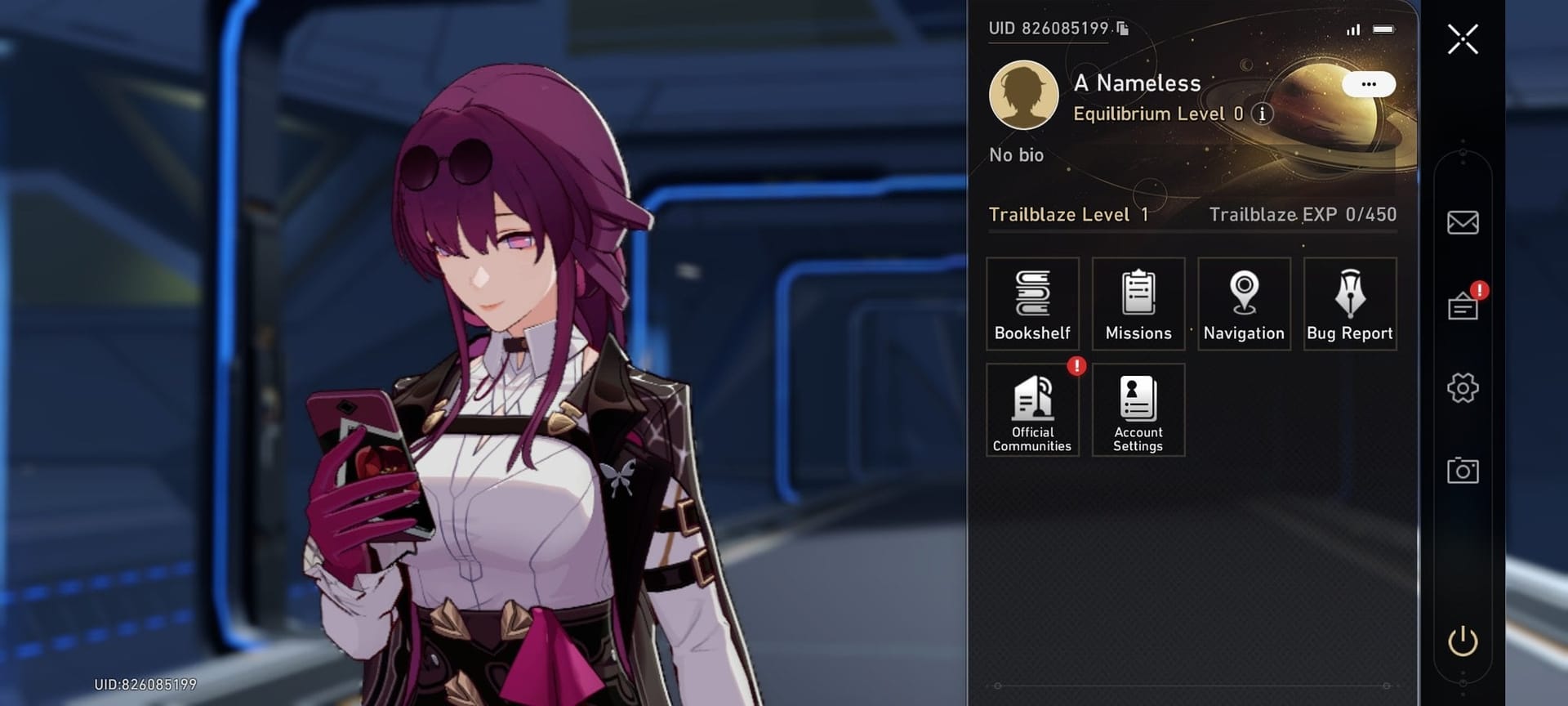
Because the store sees your new setup as different from the original purchase setup. That can break in-app top-ups even when your HoYoverse account is correct.
Common triggers:
Changed phone: old device ID no longer matches
Reinstalled app: users commonly report this can alter the device identifier enough to trigger checks
Switched iPhone to Android or Android to iPhone: platform enforcement changes
Used a different Apple ID or Google account: store mismatch
Moved from mobile to PC: in-app store rules differ by platform
Changed country/region: store region and game server no longer align
Used a VPN: officially known to cause shop load or payment failures
A few edge cases matter:
PS5-created accounts are the strictest. Community reports consistently show these accounts are usually limited to PS5 or the official web payment page.
PSN region must match the game server, and official restrictions mention Saudi Arabia and Belgium as special cases.
Huawei devices without Google Play should use the official web top-up page or another supported device.
PC Epic users with shop issues should update the launcher, log out and back in, then relaunch.
If you want to isolate the cause fast, use this rule: if the official web top-up works, the problem is probably the in-app store/device path; if web top-up also fails, check account security or region. That simple split saves a lot of wasted retries.
Can I top up on a different device if I use the official web payment page?
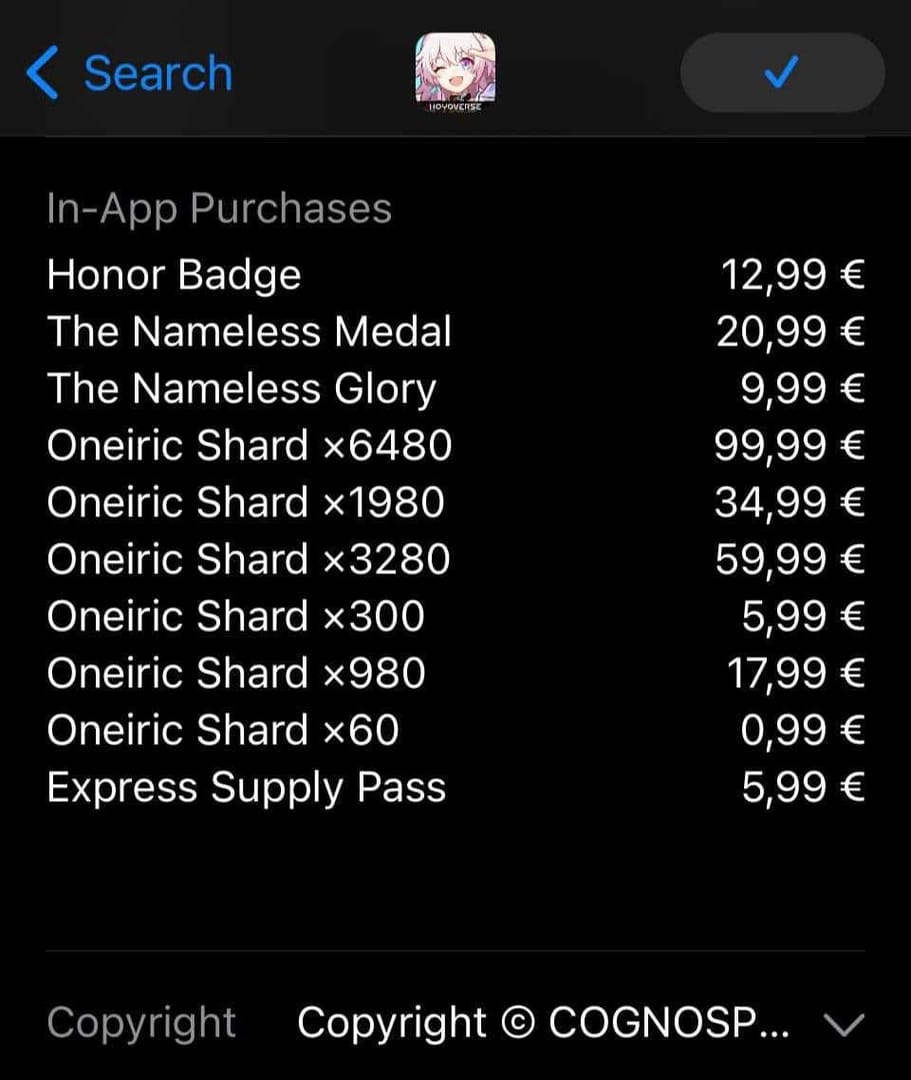
Yes, in many cases the official web top-up page is the safest cross-device workaround. The official Top-Up Center and the commonly used HoYoverse payment page are widely used for Oneiric Shards, Express Supply Pass, and Nameless Honor when in-app store purchases are blocked.
Official options:
Important condition: the login on the web page must match your actual HoYoverse game account. If you sign into the wrong account, the top-up can go to the wrong UID.
Personally, I prefer the official web route over repeated in-app retries. It gives you a cleaner way around store enforcement without risking duplicate pending charges. And if you’re comparing this with a broader Honkai Star Rail payment failed fix, the key difference is that this specific error is usually channel-based, not card-based.
How can I fix the Honkai: Star Rail registered device error step by step?
Yes, there’s a reliable order to troubleshoot this. Follow it once, carefully.
Try the original purchase device first
Open Honkai: Star Rail on the device where you first registered or previously bought packs.
Enter the in-game store.
If the item was already charged before, select the same item without paying again to try to activate it.
Don’t submit a second payment unless you’re sure the first one failed.
Confirm the same store account is signed in
iPhone: check the same Apple ID used for earlier purchases.
Android: check the same Google Play account.
PS: confirm the same PSN account and matching region.
PC: confirm the same launcher/account path, especially on Epic.
Check region alignment
Match App Store or Google Play country/region to the game server where required.
If you changed countries recently, this is a common blocker.
Disable any VPN before retrying.
Refresh the payment environment
iPhone: log out/in App Store, unlink and relink payments if needed, clear cache, restart.
Android: log out/in Google, clear Google Play cache, relink payments, clear game cache, restart.
Samsung/Galaxy Store or Google Play background issues: disable battery optimization so the store can run in the background.
Epic on PC: update launcher, log out/in, relaunch.
Xbox: log out/in Microsoft account, reboot, switch network, disable Quick Resume, reinstall if needed.
If you changed devices permanently, bind your account properly
On the old device, go to Settings > Account > User Center and link email/password.
Then log into the new device with that email.
If the old device is gone, use HoYoverse Account Center and link email/password through your Google or Apple login.
Use the official web top-up page
Log into the correct HoYoverse account.
Verify UID and server before paying.
Use this especially if mobile in-app purchases are blocked by store enforcement.
Retry one payment method only
One attempt is enough after checks.
Repeated retries can create duplicate charges or extra verification holds.
Honestly, this is where users lose the most time: they keep changing cards when the real issue is the purchase channel.
How do I top up safely if I no longer have the original device?
Use the official web top-up page first, then contact support with full evidence if it still fails. That’s the cleanest path.
Before opening a ticket, gather everything support actually needs:
Use the official Help Center: https://support.hoyoverse.com
In payment troubleshooting, the fastest resolutions usually happen when the ticket includes UID, server, exact item, timestamp, order ID, and screenshots in the first message. If you send a vague my payment failed, support will usually come back asking for basics and you lose another day.
What not to do:
Don’t keep retrying the same purchase
Don’t use mismatched regions
Don’t file a chargeback before support reviews the case
Don’t use unauthorized channels; official guidance warns of account or asset risk
There’s also no confirmed safe discounted bypass for this restriction. Community reports about unofficial workarounds exist, but they aren’t officially supported and carry policy risk. I would avoid them.
Why does Honkai: Star Rail say please use the device you registered?
Because the purchase is being checked against the original device, store account, or platform used before. It’s usually a store-policy restriction, not a problem with your UID alone.
Can I top up Honkai: Star Rail on a different phone?
Yes, often through the official web Top-Up Center. But in-app purchases on a different phone may fail if the original store account or device context no longer matches.
How do I fix Honkai: Star Rail payment failed after changing devices?
First, try the original device and original store account if you still have them. If not, bind your HoYoverse account properly, use the official web payment page, and prepare UID, server, receipt, and order details for support.
Does Honkai: Star Rail require the original App Store or Google Play account for purchases?
In many reported cases, yes for in-app purchases. Users commonly hit this error when they switch to a different Apple ID or Google Play account even though the game account is unchanged.
Can I buy Honkai: Star Rail top ups on PC if I started on mobile?
Sometimes, but not always through the in-app route. The official web top-up page is usually the safer cross-device option, while direct in-app store behavior depends on the original platform and store enforcement.
What information does support need for a Honkai: Star Rail recharge problem?
Support needs your UID, server, order ID, payment method, receipt, timestamp in UTC+8, item name, and transaction proof. Screenshots and device model also help speed up review.
Will repeated payment attempts lock my Honkai: Star Rail purchase?
They can create duplicate charges or extra verification problems. Official guidance is clear: if the item wasn’t received, don’t keep paying again before support checks it.
What should I do if my Honkai: Star Rail top up was charged but not delivered?
Wait briefly for activation, then re-enter the store or select the same item without repaying if official instructions apply. If it still doesn’t arrive, contact HoYoverse support with the receipt and order details; there’s no guaranteed automatic refund.
Honkai: Star Rail’s Please Use the Device You Registered error is usually a payment-channel restriction tied to the original device, store account, or platform. The best fix is simple: try the original setup first, then switch to the official web Top-Up Center if the device is unavailable. If payment was charged or the error persists, stop retrying and send support a complete evidence package on the first ticket.