
If your Ludo Club coins were not added after top up, do not pay again immediately. First confirm the active Player ID, check whether the payment is completed or still pending, and save your receipt, order ID, and screenshots so support can trace whether the coins were delayed, sent to another account, or never fulfilled. In missing-balance cases, the fastest fix is often verifying account identity before arguing about the payment itself. If you need a starting point while troubleshooting, this page on Ludo Club coins not added after top up follows the same issue pattern.
Quick verdict: is this a delay, an account mismatch, or a real missing-coins case?
Most Ludo Club payment deducted not added complaints fall into three buckets: a short sync delay, coins credited to a different account, or a payment that never fully cleared the billing and fulfillment chain.
A normal delay is the least serious case. Community troubleshooting patterns suggest waiting about 5 to 10 minutes first, because direct recharge often appears quickly and short lag can happen before the balance refreshes. During that window, restarting the app or logging out and back in can help refresh the server connection. Some users also find that clearing cache or restarting the device helps when the app display is stale.
The second bucket is more common than many players expect: the coins are not missing, but attached to another Ludo Club profile. This usually happens after a reinstall, a phone change, a guest login, or a switch between Facebook and Google sign-in. The result feels like a failed top-up, but the real problem is account mismatch.
The third bucket is the true escalation case. If your receipt exists, the charge looks successful, and the coins still do not appear after basic refresh steps, the issue may sit with billing review, payment processing, or merchant fulfillment. That is when evidence matters most.
A simple way to read the situation is this:
If the payment just happened, treat it as a possible sync delay first.
If you changed device, reinstalled, or use more than one login method, suspect the wrong account next.
If the order status is pending, the payment is not fully settled yet.
If the order is completed and the account is correct, prepare a support ticket with full proof.
Why are my Ludo Club coins not added after top up?
The short answer is that a successful charge does not always mean successful delivery to the exact game account you are currently viewing.
One common cause is sync delay. The payment may be accepted, but the app has not refreshed the balance yet. This is why the first response should be calm and procedural: wait a few minutes, reopen the app, and sign in again before assuming the coins are gone.
Another frequent cause is wrong-account crediting. A repeated pattern in post-payment troubleshooting is users buying on one login method and reopening the app on another. The balance then looks missing even though the coins were delivered correctly somewhere else. Guest mode makes this worse because purchases are harder to trace and sync reliably. Community guidance consistently points to binding the account first with Facebook or Google before making purchases.
There is also a platform layer to consider. In-app purchases through Google Play or the Apple App Store behave differently from direct checkout or voucher-style top-ups. App-store purchases may need a restore or sync action after reinstalling the app or moving to a new device. Direct checkout orders depend heavily on the exact Player ID entered at purchase. If that ID was wrong, the delivery can go to the wrong account even when the payment itself is valid.
Finally, there is the gap between payment capture and order finalization. A bank, card, or wallet can show a deduction while the merchant order is still pending or under review. That is why a debit screenshot alone is weak proof. It shows money movement, but not whether the game order was finalized and linked to the right account.
How do you check the correct Ludo Club Player ID and account first?
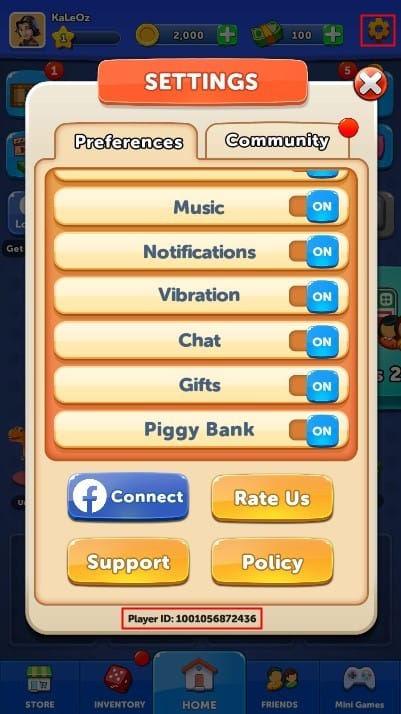
Before contacting anyone, confirm the identity of the account currently open in the app. Officially, the Ludo Club Player ID is displayed in the Settings area, accessed from the top right corner of the home screen. Launch Ludo Club, tap the Settings icon, and note the Player ID shown there.
That number is the anchor for the whole investigation. Compare it against the ID used during checkout, any confirmation screenshot you saved, and the account you normally play on. If you used a direct top-up flow, this check is especially important because third-party top-ups require exact Player ID entry for delivery.
This is also where changed phones create confusion. After reinstalling, many games reopen into a fresh guest profile or a different social login. A player then sees zero balance and assumes the top-up failed. In reality, the coins may be sitting on the original account tied to the purchase. From reviewing missing-balance cases across digital top-ups, this is one of the fastest wins: verify identity first, because many missing purchases are really hidden behind the wrong login.
A few patterns are worth checking carefully:
You bought while signed in with Google, then reopened on guest.
You used Facebook before, but after reinstalling you entered a different profile.
You changed phones and the app created a fresh account.
You bought for a friend and entered the wrong Player ID.
If Facebook login sync is acting strangely, relogging can help. If you are on Android, checking the Google Play Games sign-in can also matter when progress or purchases are not syncing properly.
If you want a prevention-focused walkthrough, this is the point where a guide like How to check Ludo Club Player ID before buying coins is useful: the ID check should happen before every purchase, not after a problem.
What proof should you collect before opening a support ticket?
Support moves faster when you send a complete order trail in the first message. The most useful evidence is not just a bank debit screenshot but the combination of account identity, transaction record, and in-app state.
Start with the essentials: your Player ID, order ID or transaction ID, receipt screenshot, payment timestamp, amount paid, and the platform used. Add device information and a screenshot showing the current balance or the missing entitlement inside Ludo Club. If the issue is a feature that remains locked after purchase, include that screen too.
This matters because different proof answers different questions. The receipt shows that a purchase exists. The order ID lets support trace it. The timestamp helps them locate the transaction. The Player ID tells them where the coins should have gone. The in-app screenshot shows the actual delivery problem.
Weak proof tends to slow everything down. A cropped SMS alert or a banking notification without date, amount context, or order reference does not tell support enough. It proves a charge happened somewhere, but not which game order it belongs to.
The strongest evidence bundle usually includes:
Player ID from the Ludo Club Settings screen
Order ID or transaction ID
Full receipt screenshot
Payment date and time
Amount paid
Payment platform or checkout channel
Device details
Screenshot of the current in-game balance or locked content
If you paid through an app store, the receipt and store order record are central. If you used a direct checkout, the order confirmation and the exact Player ID entered are just as important. For related troubleshooting, a Ludo Club receipt and order ID guide or Ludo Club wrong account recharge fix would naturally fit here because those are the two evidence gaps that most often delay resolution.
Which payment channel should you check first: app store or web checkout?
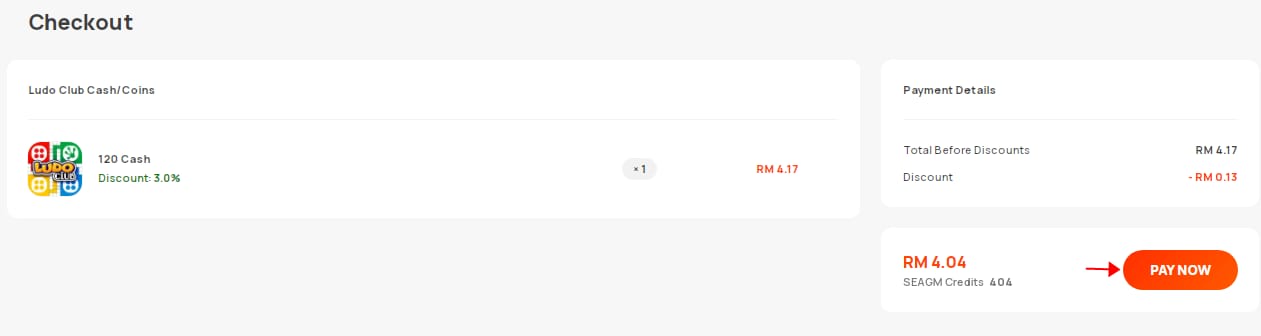
The right first check depends on where the order was processed, because the failure point changes with the payment channel.
If you paid through Google Play
Go to Google Play order history at play.google.com/store/account and check the purchase status. If the order is still pending, the issue is not yet a confirmed game-delivery failure. Community reports note that pending Google Play billing can delay coin delivery, so the correct move is to wait for final status rather than buying again.
If the order is completed, open Ludo Club on the same Google account used for the purchase. Then try the in-app restore flow if available, log out and back in, and check that Google Play Games sign-in is correct on Android. Restore is especially relevant after reinstalling the app or moving to a new device.
If you paid through Apple billing
The logic is similar. Open the app and look for the restore option in the store or Settings menu. Official guidance supports restore purchases as the first step when an Apple purchase is not showing after reinstall or device change. Make sure you are on the same Apple account that made the purchase before assuming the coins are missing.
If you used a direct checkout or voucher-style top-up
Here the first question is not restore, but identity. Was the correct Player ID entered? Direct top-ups depend on exact Player ID matching, and one wrong digit can send the order elsewhere. Some checkout systems also show order status in a My Orders area, which can help you tell the difference between a paid order that is still processing and one that has already been fulfilled.
There is also a payment-processor layer to keep in mind. With some methods, especially bank-linked flows, a deducted balance may only reflect a pending authorization or a delay before the merchant finalizes the order. That is why checking order history matters more than repeatedly refreshing the game.
A useful rule of thumb is this: app-store purchases usually need store-status and restore checks; direct checkout purchases usually need Player ID and order-status checks.
Who should you contact first for missing coins?
Contact the party closest to the point of failure, but do not skip Ludo Club support when the account and delivery trail need to be traced.
If the app-store order itself is pending or unclear, start with the store billing side. If the store order is completed but the coins or paid access still do not appear after restore and relogin, the case is ready for game support. If a direct checkout shows paid but no coins arrived, start with the seller or checkout support for order status, then escalate to Ludo Club support with your Player ID and proof if the order appears fulfilled but the balance is still absent.
Officially, Ludo Club support can be reached through the in-game Settings menu or by email at ludoclub@moonfroglabs.com. Moonfrog Labs handles these support tickets. When you write, keep the first message clean and complete. Include the Player ID, order ID, amount, timestamp, platform, screenshots, and device information. Also mention what you have already tried: waiting for sync, relogging, restore purchases, and checking the same Google or Apple account.
That last part reduces back-and-forth. Support can move directly into tracing instead of asking you to repeat basic steps.
A practical escalation path looks like this:
Wait through the short sync window.
Verify the active Player ID in Settings.
Confirm the login method and store account.
Check order history or checkout status.
Try restore or relogin if relevant.
Contact support with full evidence.
Avoid repurchasing while the first order is unresolved.
If the issue turns out to be a wrong-account recharge, the evidence still matters. Support will need the exact Player ID involved, the transaction details, and screenshots to investigate whether the order can be traced.
Before you pay again
The worst follow-up mistake is making a second purchase while the first one is still unresolved. That can create duplicate charges, muddy the order trail, and make refund or correction requests harder.
A safer routine is simple but effective. Before any repeat purchase, confirm the Player ID in Settings, confirm the login method you actually use, and confirm which payment channel you are using. Save the receipt before closing the payment page. Then give the app a short sync window before concluding anything is wrong.
This is especially important if you use more than one device or switch between guest and social logins. Old device cache, reinstall behavior, and account mismatch can all make a valid purchase look invisible. Treat future top-ups as an identity check first and a payment action second.
If you want a broader prevention path, this is where a Ludo Club top up guide, Ludo Club payment help center hub, or Ludo Club Google Play or Apple purchase not showing article would fit naturally. The goal is not just to fix one missing balance, but to make the next purchase easier to trace.
If you plan to top up again, use VGTopup only after you have verified the correct Player ID and payment channel so your next order is easier to trace.