
If Saada restore purchase is not working, the cause is usually simple: you’re signed into the wrong Apple ID or Google account, the Saada app login doesn’t match the original account, the purchase was a consumable coin pack that won’t restore normally, or the subscription hasn’t synced yet. Start there.
For most users, Saada VIP, premium plans, and one-time unlocks are the items that can restore. Spent app coins usually can’t. Check the original store account, confirm what you bought, wait a short sync window if the payment was recent, and contact Saada support with the order ID before you try buying again.
Why is Saada restore purchase not working?
Because restore only works for certain purchase types, and it only works when both the store account and the Saada account match the original purchase. Official store rules are clear: restores are for non-consumables and active subscriptions, not spent consumable credits.
From reviewing failed digital purchase cases, this is the mistake I see most: users focus on the payment method, but the real break happens between identities. There are two separate checks:
Store identity: the original Apple ID on iPhone/iPad, or the original Google account on Android
App identity: the same Saada phone number, email, bound login, UID, or internal account profile
If either one changed, restore can fail even when the charge was real.
What usually restores, and what usually does not?
Here’s the practical split:
Users commonly report confusion here. They expect coins and VIP to behave the same way. They don’t. In premium renewal troubleshooting, subscriptions and non-consumables behave very differently from consumable credits, and that’s exactly why many missing purchase cases are really non-restorable coin pack cases.
If you need a fresh supported purchase path for credits or membership after you verify restore limits, check Saada restore purchase coins only after confirming you’re not about to duplicate an existing entitlement.
Does Saada restore purchases across iPhone, Android, and different accounts?
Usually no across platforms unless Saada supports cross-platform entitlement sync. Officially, an iOS purchase does not restore on Android just because you use the same app login.
That’s a big one. If you bought VIP through the Apple App Store and then moved to an Android phone, restore inside Android often won’t see that purchase unless Saada has its own account-level sync for premium access. The same problem appears after switching billing region.
Common blockers:
iOS purchase, Android restore attempt
Android purchase, iPhone restore attempt
Changed App Store country or Google Play billing country
Subscription unavailable in the new region
Logged into a different Saada profile after reinstalling
Official guidance also supports this: changed store country can block restore, and billing region changes may require a new purchase in the new country. Personally, I would check region before anything else if you recently moved countries or changed your store profile. It’s an easy detail to miss, and it wastes hours.
Why is my Saada VIP active in the store but not in the app?
Because billing status and app entitlement status are not always the same thing. A successful renewal or bank charge does not always mean Saada has finished syncing VIP access.
Users commonly report a delay after renewal, reinstall, or app update. In many cases, waiting 10–30 minutes helps; for stuck entitlement sync, 24–48 hours is the realistic upper window before escalation. Honestly, delayed delivery is frustrating when the payment already left your account, but repurchasing too early is how people get double-charged.
Other reasons this happens:
The subscription renewed on the store, but you opened Saada with the wrong in-app account
The app update stopped recognizing prior purchases until you tap restore again
The restore button is stuck, grayed out, or spinning because cache/license data is stale
The subscription appears active in the store, but it’s tied to a different region or unavailable plan state
How do you fix Saada restore purchase for app coins and VIP step by step?
Use this order. It’s the fastest path and avoids duplicate charges.
Identify what you bought.
Check whether it was:a VIP subscription,
a one-time premium unlock,
or a coin/app-credit pack.
Use App Store purchase history or Google Play order history to confirm the item type. On Google Play, go to Payments & subscriptions > Budget & history.
Confirm the original store account.
On iPhone, sign into the same Apple ID used for the purchase. On Android, use the same Google account. Restore won’t work from a different store login.Confirm the original Saada account.
Sign into the same phone number, email, UID, or bound account inside Saada. Community reports consistently show that wrong app login is one of the biggest restore blockers.Update Saada to the latest version.
After app updates, previous purchases sometimes aren’t recognized until the app is current and restore is triggered again.Restart the device, then open the store first.
Force quit the App Store or Google Play, restart the device, open the store, then open Saada and tap Restore Purchases. This can refresh store licensing.If restore is stuck, clear local app state.
Try:force close and relaunch
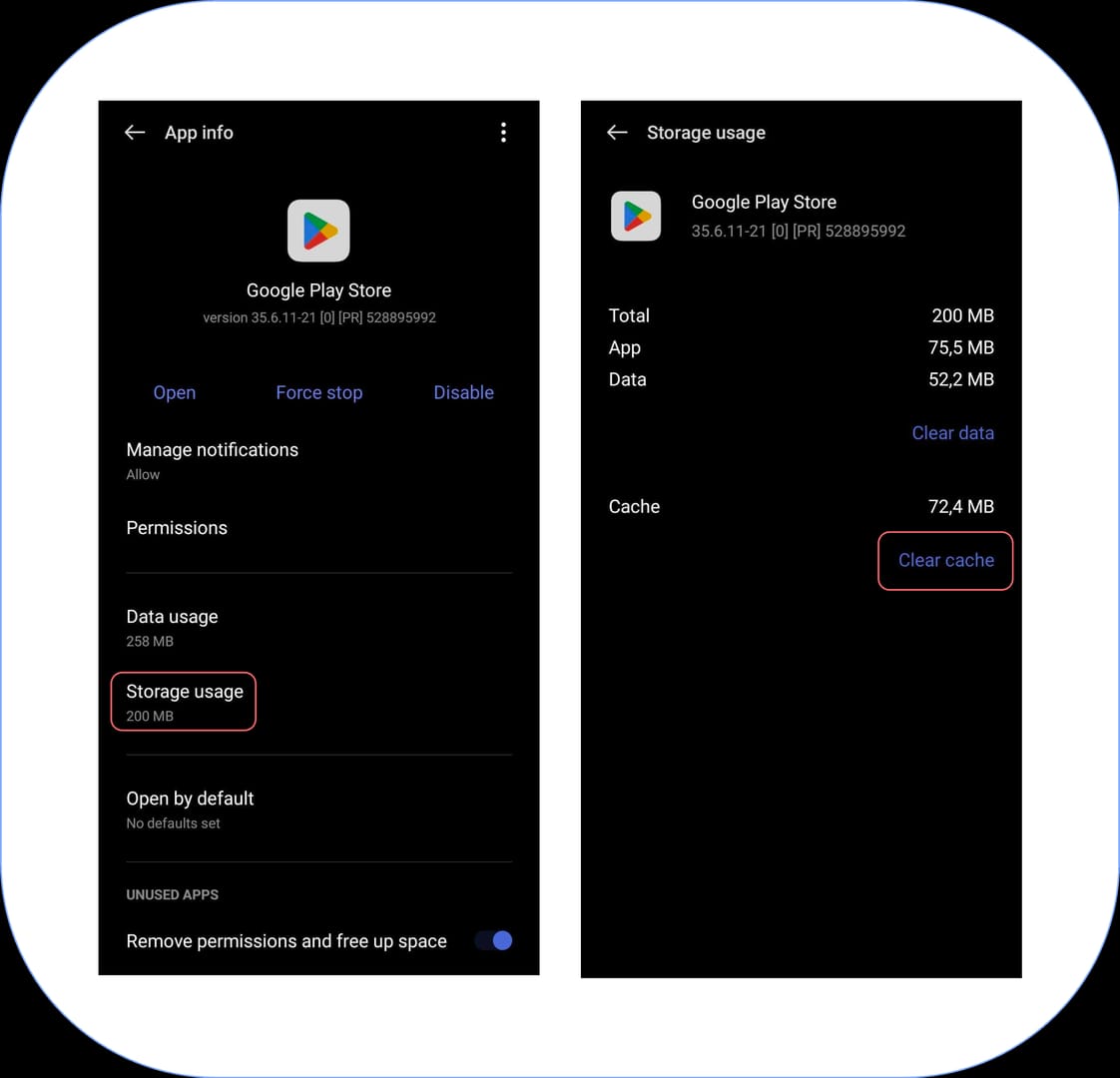
clear app cache/data on Android
reinstall the app if the button is grayed out or spinning indefinitely
Community reports often say reinstalling fixes restore after device reset or app deletion.
Wait if the payment was recent.
If you were just charged, give it 10–30 minutes first. If the store shows the order but Saada still doesn’t grant VIP, wait up to 24–48 hours for server sync before escalating.Do not repurchase yet.
Use restore first. That’s the safest way to avoid a second charge for the same membership.
If you’re trying to recover credits rather than VIP, read the purchase type carefully. Saada app credits restore is only relevant as a new purchase option where supported; it does not change the basic rule that spent consumable coins usually don’t restore through the app store.
What should you do if Saada still does not restore your purchase?
Contact the right support team with complete proof. That matters more than long explanations.
When a charge appears without entitlement, the fastest support resolution usually happens when users send the order ID, exact purchase date, platform, and account identifier in the first message. I would check this first because support delays often come from missing basics, not from the case being hard.
Prepare this before contacting support:
Who should you contact first?

Contact Saada support first for missing VIP, premium access, or entitlement not showing in the app. Official guidance points users to the app developer first for entitlement issues.
Contact Apple Support or Google Play support when:
the store shows billing verification failure
the charge is stuck or disputed
restore repeatedly fails despite correct account matching
you need store-side purchase verification or refund review
If restore keeps failing on iPhone, Apple’s official support path includes reportaproblem.apple.com. On Android, Google Play support is the right escalation for verification failures.
FAQ
Why is Saada restore purchase not working?
Usually because the purchase type isn’t restorable, the wrong Apple ID/Google account is signed in, or the Saada app account doesn’t match. Region changes and cross-platform moves also break restore often.
Can Saada restore app coins and VIP on a new phone?
VIP and premium purchases often can restore on a new phone if you use the same store account and same Saada login. Consumable app coins usually do not restore the same way, especially if they were already spent.
Does Saada restore purchases across iPhone and Android?
Not by default. iOS purchases generally do not restore on Android unless Saada supports cross-platform entitlement sync on its own account system.
How do I find my Saada receipt or order ID?
Check your App Store purchase history or Google Play order history. For Google Play, open Payments & subscriptions > Budget & history; on iPhone, use your App Store purchase history under the same Apple ID.
What should I send to Saada support for a missing purchase?
Send the order ID, receipt screenshot, purchase date, platform, device, and your Saada account identifier. Keep it tight and complete; that usually gets faster manual checking.
Who should I contact if Saada charged me but did not restore VIP?
Start with Saada support if the store charge exists but VIP is missing in the app. Go to Apple or Google Play support if the issue is billing verification, store-side failure, or repeated restore errors after account checks.
Saada restore purchase problems usually come down to purchase type, account mismatch, platform mismatch, or delayed sync. VIP and premium plans can often be restored; spent app coins usually can’t. Check the original store account, the original Saada login, and the order history first. If that doesn’t fix it, send Saada support your order ID, receipt, and account details before you consider buying again.