
To restore GIGB Premium after switching phones, sign in with the same GIGB account, the same login method, and the same billing account used for the original purchase, then tap Restore Purchase in the app if it appears. If Premium still doesn't return, check whether the subscription is actually active in Apple Subscriptions or Google Play subscriptions before assuming the payment was lost.
That distinction matters. In my experience reviewing subscription recovery cases, most failures come from account mismatch, not a broken restore button. If you need a quick reference for GIGB restore purchase after device change, start with account, platform, and receipt checks first.
Why does GIGB Premium disappear after switching phones?
It usually disappears because the new phone is signed into the wrong app account, wrong store account, or a different platform ecosystem.
A restore only works when billing ownership and app access line up. Officially, restoring a purchase requires the same Apple ID or Google Account used originally, and you also need to be signed into the correct GIGB account before restoring. Users often miss one of those two layers:
App account: your GIGB login, email, or sign-in method
Billing account: Apple ID on iPhone or Google account on Android
Platform: App Store and Google Play are separate billing ecosystems
A common mistake is switching from Google login to email login, or from one Apple/Google account to another. From comparing recovery cases, I would check this first before reinstalling anything.
Another edge case: the subscription may simply be expired. An expired plan often looks like premium missing after switch, especially after a factory reset or fresh install.
Can GIGB Premium be restored across iPhone, Android, and web checkout?
Usually no across iPhone and Android; same-platform restore is the supported path.
Officially, no cross-platform transfer is supported between iPhone and Android. Community reports match that: users commonly report that an App Store purchase won't transfer to Google Play, and a Google Play subscription won't transfer to the App Store. So if you moved:
iPhone → iPhone: restore is normally possible
Android → Android: restore is normally possible
iPhone → Android: repurchase is typically required
Android → iPhone: repurchase is typically required
That’s the part many guides skip. They tell you to tap Restore Purchase, but they don't explain that restore is about recovering the same purchase on the same billing ecosystem, not moving a subscription between stores.
Region can also block recognition. Users commonly report restore issues when the account region or store region changed. And if the app version is outdated, the restore option may fail to sync until you update.
Why is GIGB Premium not showing even though I already paid?
Because a successful charge doesn't always mean the app has matched that payment to your current account and platform.
Honestly, this is the frustrating part. You see the bank charge, Apple Pay charge, Google Pay charge, or card authorization, but Premium stays locked. The usual causes are:
Personally, I would avoid guessing. Verify the billing source first, then the app account, then the restore button.
How do I restore GIGB Premium Purchase After Switching Phones?
Use the original account stack first: same GIGB login, same store account, same platform.
Identify where you bought Premium
App Store on iPhone
Google Play on Android
Web checkout, if GIGB offers account-based web billing for your plan
Sign into the same GIGB account on the new phone
Use the same login method as before
If you used Google sign-in before, don't switch to email login now
If you changed email recently, check whether the old account still holds the subscription
Confirm the billing account matches
On iPhone: use the same Apple ID that bought the subscription
On Android: use the same Google account that bought the subscription
Officially, restore fails if you're signed into the wrong store account
Update the app
Community reports suggest restore can fail on older app versions
Update first, then reopen the app
Use the restore path inside GIGB
Open the app
Tap your photo icon
Tap the gear icon
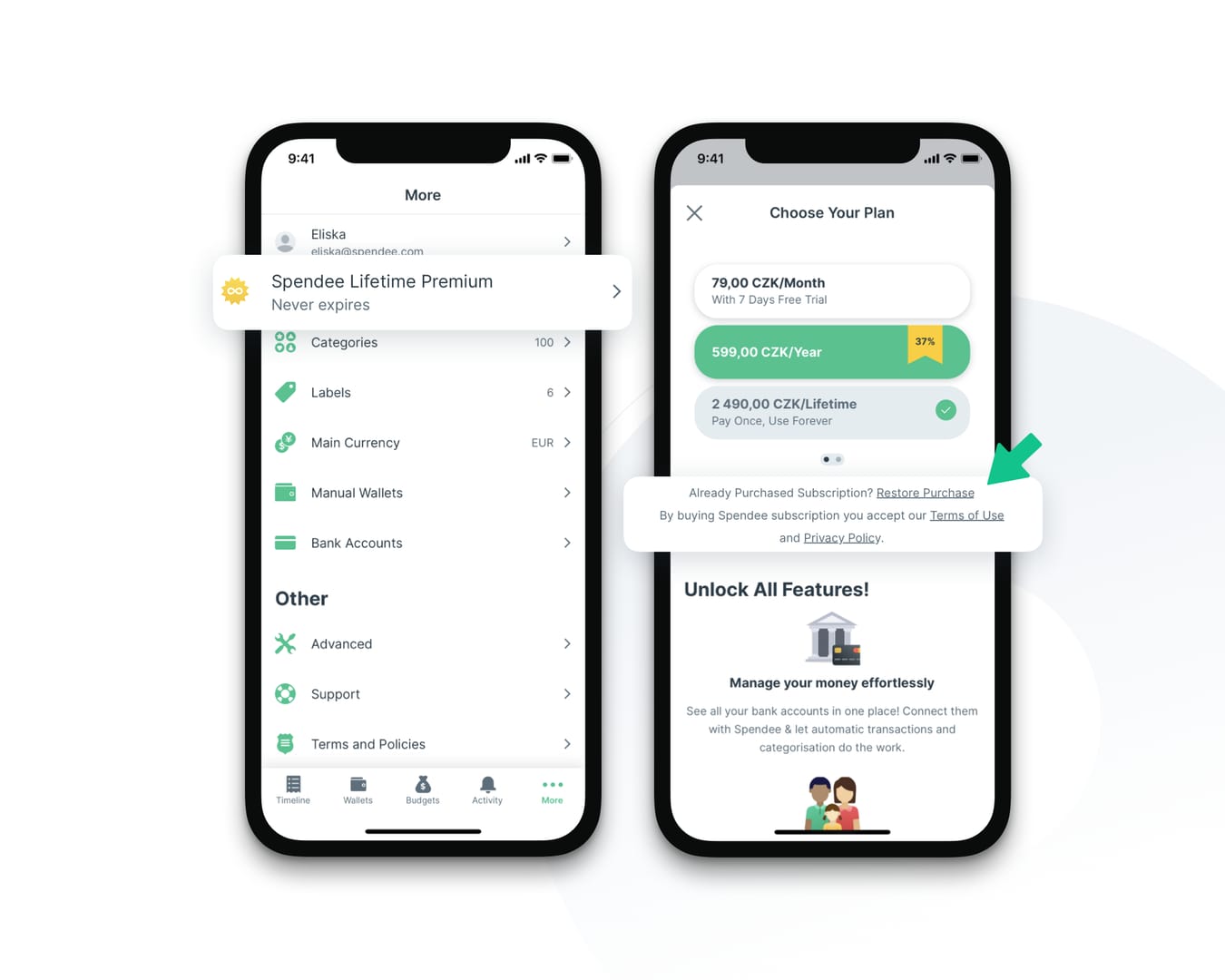
Tap Restore Purchase
If that path looks different, check the store, menu, account, profile, settings, or upgrade screen for Restore Purchase or Restore Premium
If restore doesn't work, reinstall once
Sign out
Delete the app
Reinstall it
Sign back in with the original account before doing anything else
Then retry Restore Purchase
If you're on Android, also check Play subscriptions
Open Google Play
Go to profile > payments & subscriptions
Confirm the plan is active under the correct Google account
If you're on iPhone, check Apple subscriptions
Open Settings > Apple ID > Subscriptions
Confirm GIGB Premium is active under the Apple ID you used originally
If your issue is closer to GIGB premium credits not showing after reinstall, the same logic applies: verify account identity before treating it as a payment failure.
What should you do if GIGB Restore Purchase still does not work?
Open a support ticket with proof that ties the payment to your account.
In payment-support escalations, the fastest resolutions usually happen when the user sends both the store receipt and the in-app account identifier, not just a screenshot of the charge. Support usually needs enough detail to match billing ownership with account access.
Send this checklist:
A safe escalation path:
Describe the exact mismatch
Payment is active in Apple Subscriptions, but Premium is locked in the app.
I switched phones but stayed on the same platform.
I changed login method and now restore fails.
State your platform clearly
iPhone to iPhone
Android to Android
iPhone to Android
Android to iPhone
Attach proof
Receipt
Order ID
Account email
Plan name
Purchase date
If the store itself shows no active subscription
Contact Apple or Google billing support first, because the issue may be store-side rather than app-side
One more practical note: don't ask support to force an unsupported iPhone-to-Android or Android-to-iPhone transfer. Official and community information both point the same way there: cross-platform repurchase is the normal outcome.
How do I restore my GIGB Premium purchase on a new phone?
Sign into the same GIGB account and the same Apple ID or Google account used for the original purchase, then tap Restore Purchase in the app. If it still fails, verify the subscription is active in the relevant app store before contacting support.
Why is GIGB Premium not showing after I switched phones?
The most common reasons are wrong login method, wrong store account, expired subscription, or switching from iPhone to Android or Android to iPhone. From reviewing these cases, account mismatch is more common than an actual lost payment.
Does GIGB Premium transfer from iPhone to Android?
No, official guidance indicates cross-platform transfer between iPhone and Android isn't supported. If you changed ecosystems, repurchasing is usually required.
What account do I need to use to restore a GIGB purchase?
Use the same GIGB account and the same billing account that made the purchase. That means the original Apple ID on iPhone or original Google account on Android.
How can I find my GIGB premium receipt or order ID?
Check your Apple subscription history or Google Play purchase history under the account that paid. The order ID from app store purchase history is one of the most useful support identifiers.
What should I do if Restore Purchase does not work in GIGB?
First confirm the subscription is active, the app is updated, and you're on the same platform. Then reinstall once, retry restore, and contact support with the receipt, order ID, account email, plan name, and purchase date.
Can I restore GIGB Premium if I changed my email or login method?
Sometimes, but only if support can verify the original account ownership and purchase record. Changed email or switching login methods is a known reason automatic restore fails.
GIGB Premium restore after switching phones is usually straightforward on the same platform: same GIGB account, same Apple ID or Google account, then Restore Purchase. If Premium stays locked, don't keep retrying blindly. Check subscription status, confirm platform and region, then send support a clean proof set with your receipt, order ID, account email, and plan details.